What's New in AppChecks: Clearer Subscriptions, Instant Search and a Better Mobile Experience
A few weeks of work went into the parts of AppChecks you touch every day: the Account page, the lists of monitors and notifications, and the app on your phone. None of it is flashy. All of it should save you a few clicks, and occasionally a mild panic about billing.
Your subscription, at a glance
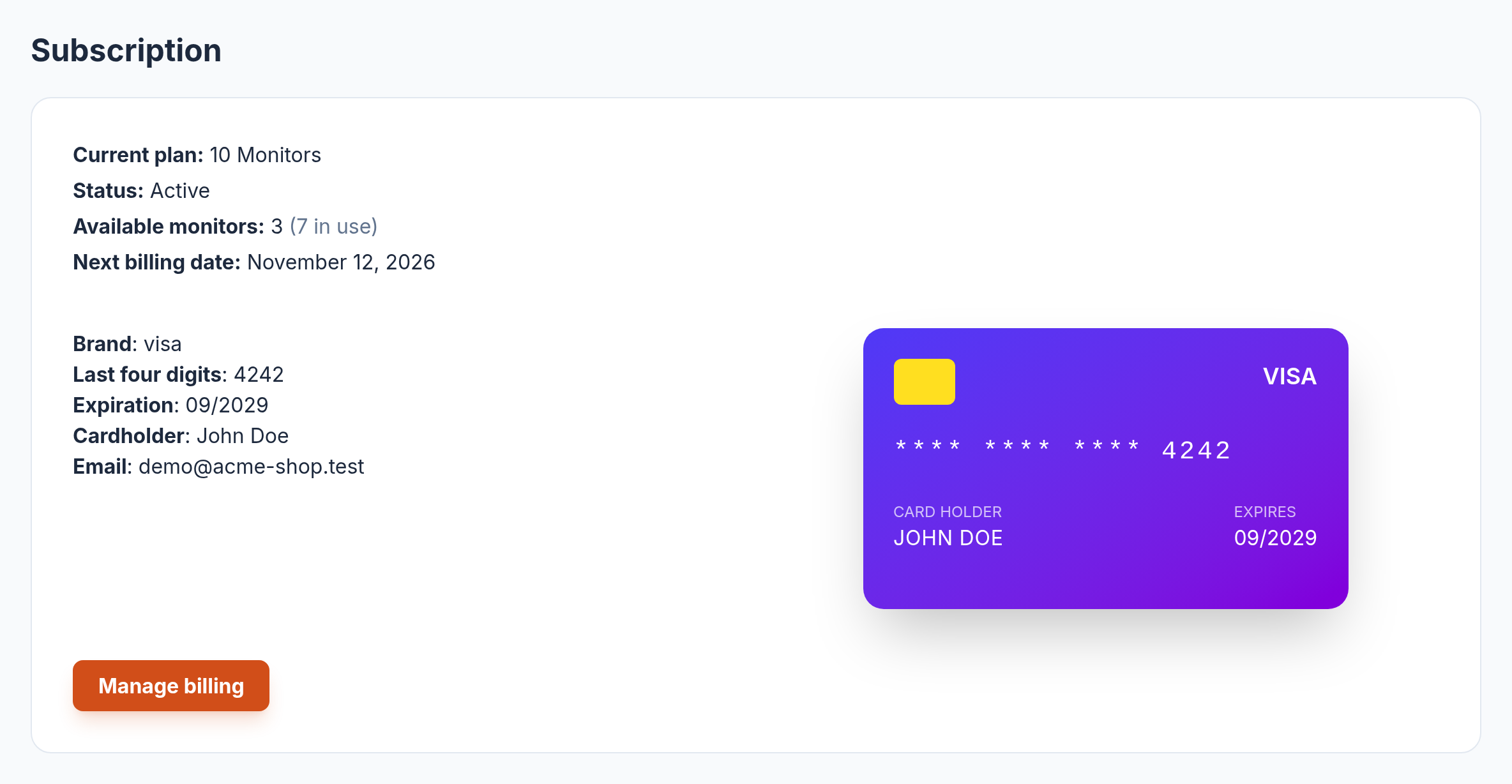
Until recently, the Subscription section of the Account page told you exactly one thing: the name of your plan. Everything else you had to work out yourself or dig up in an old receipt.
It now shows the status of your subscription, so a failed payment is visible before it turns into a problem. Next to it is the number of monitors you can still add on your plan, with the number already in use in brackets. If you're about to set up a monitor for a new site, you can see right away whether there's room for it or whether it's time for a bigger plan. Below that is the date of your next charge.
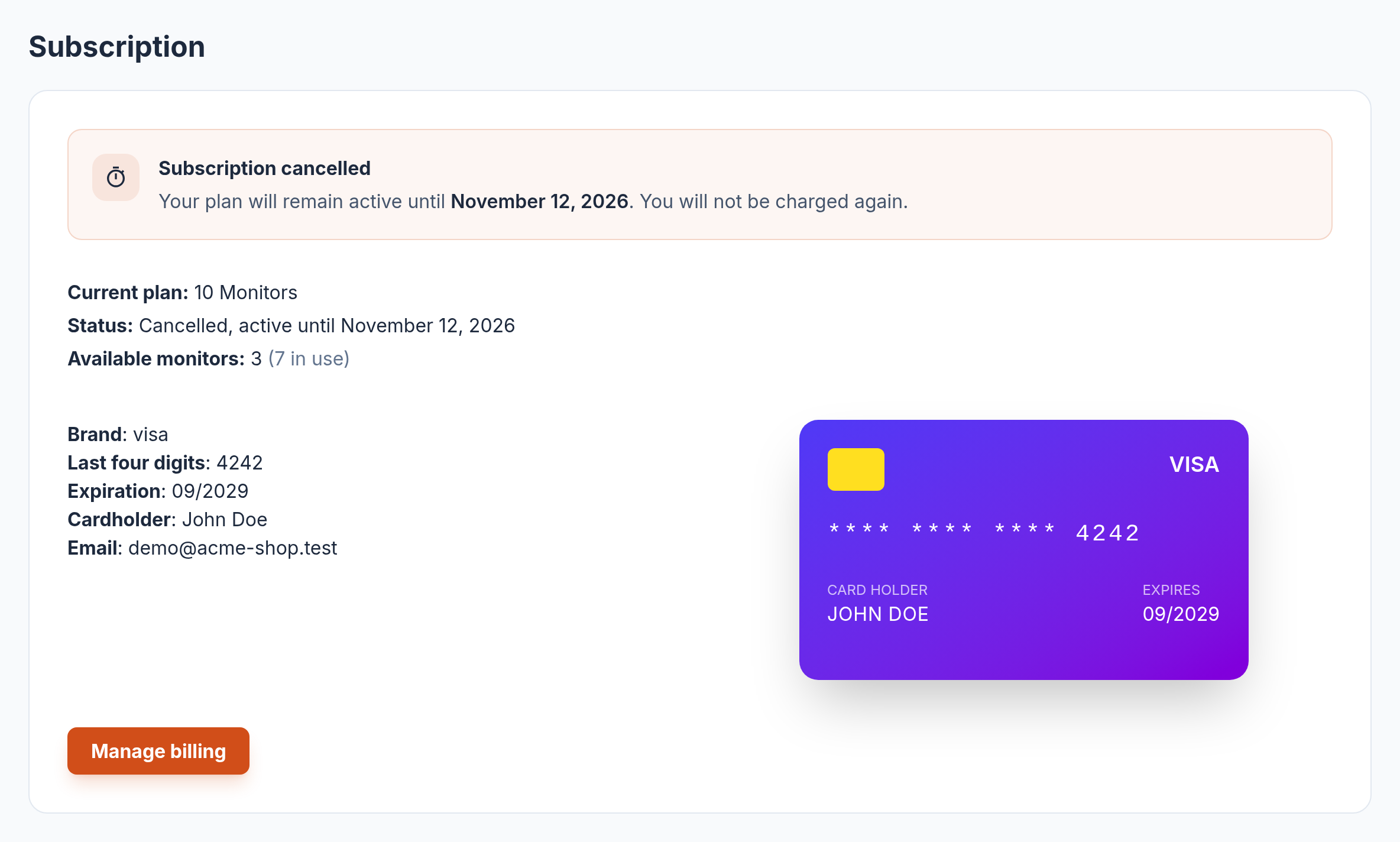
Cancelling works the way you'd expect. Your monitors keep running until the end of the period you've already paid for, and the page says so plainly: a notice with the exact date the plan stays active until, and a line confirming you won't be charged again.
The same information comes by email. When a subscription starts, you get the plan, the card it's billed to and the next billing date; when it's cancelled, you get the date it ends. Handy if your accountant asks in March what exactly happened in October.
Search for monitors and notifications
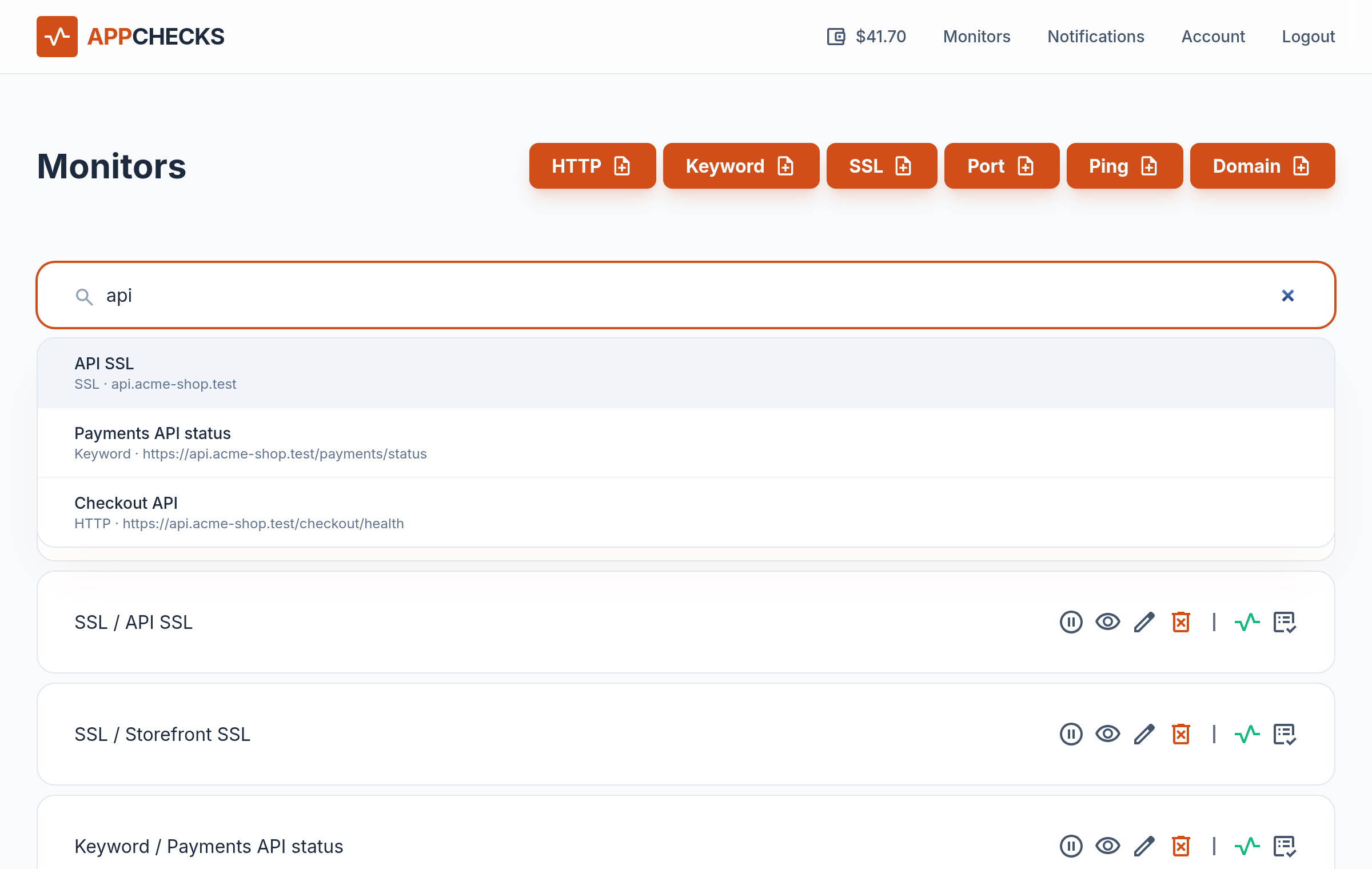
With five monitors, a list is fine. With forty, it's a scroll-and-squint exercise. The Monitors and Notifications pages now have a search box at the top, and results appear as you type.
It looks further than the title. A monitor can be found by its URL or host, so typing api turns up both the
monitors with "API" in their names and anything that checks api.acme-shop.test, whatever you happened
to call it six months ago.
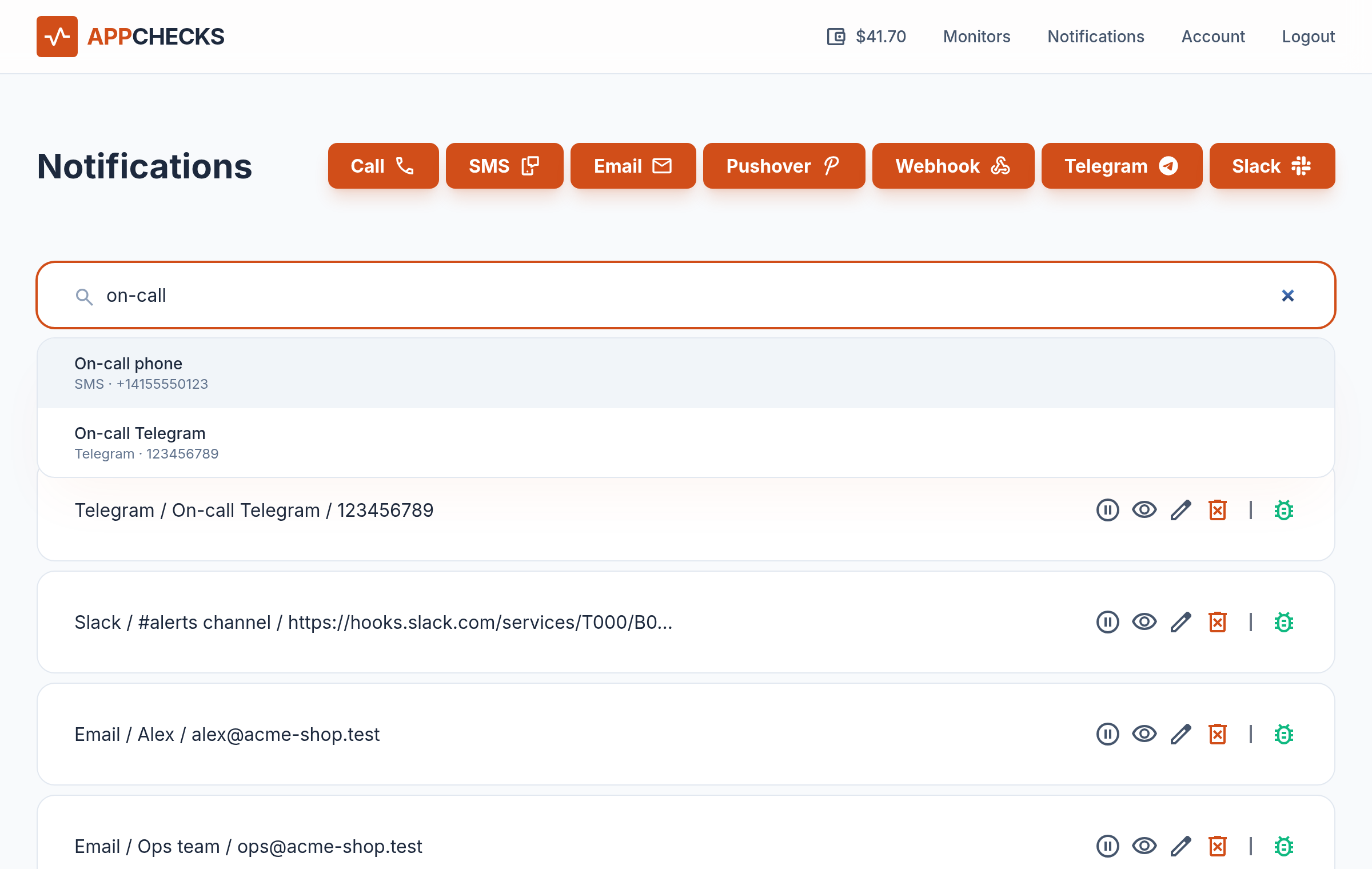
Notifications work the same way: search by title or by the thing the alert is sent to, whether that's an email address, a phone number, a Telegram chat or a webhook URL. Type several words and you'll only get results containing all of them, with title matches listed first. If you'd rather keep your hands on the keyboard, ↑ and ↓ move through the list, Enter opens the highlighted item and Esc closes it.
On your phone
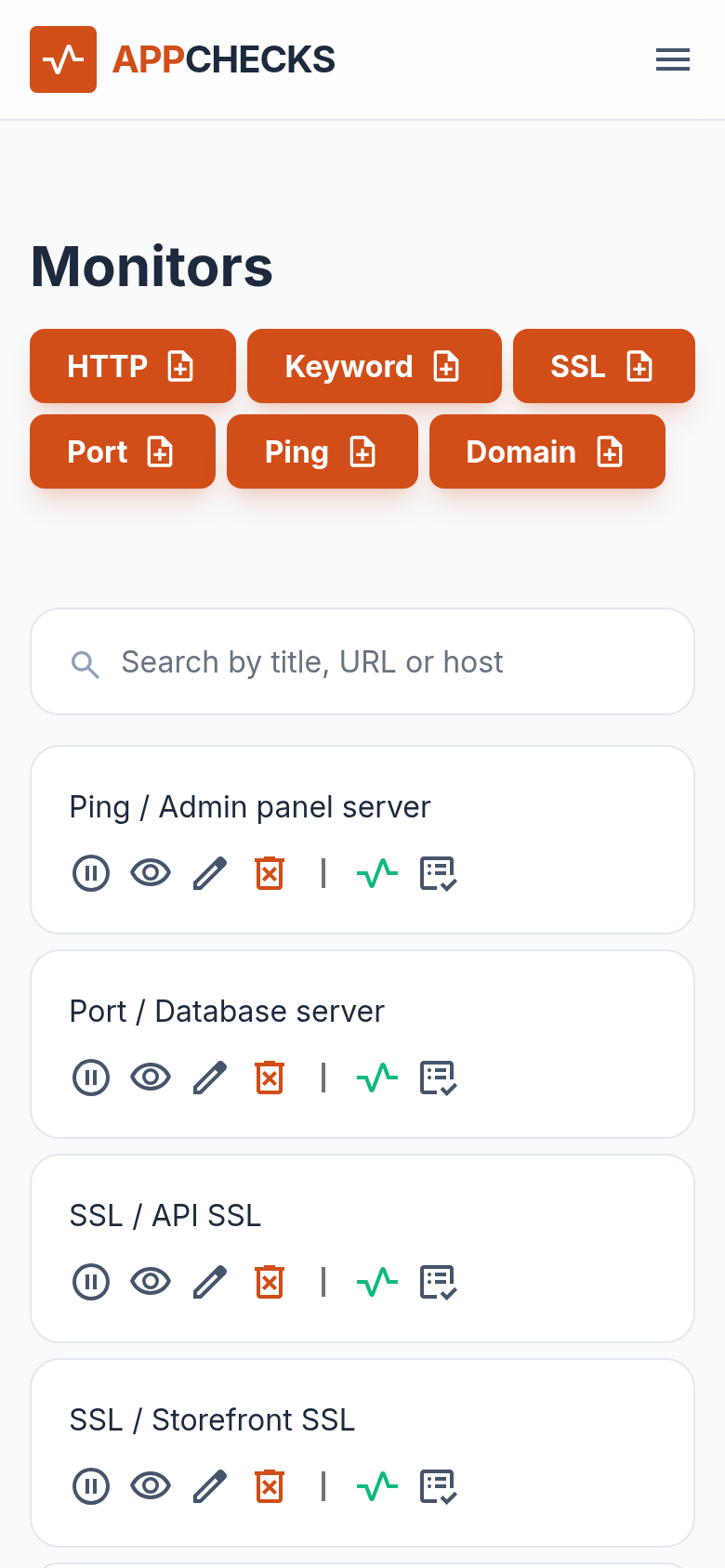
Alerts tend to arrive at inconvenient moments, and the first thing most people reach for is their phone. So we went through the app page by page on a small screen: monitor and notification lists, monitor details, run logs, balance history, the Account page. Everything now fits the width of the screen, buttons are big enough to hit with a thumb, and the navigation folds into a menu button at the top.
Slack
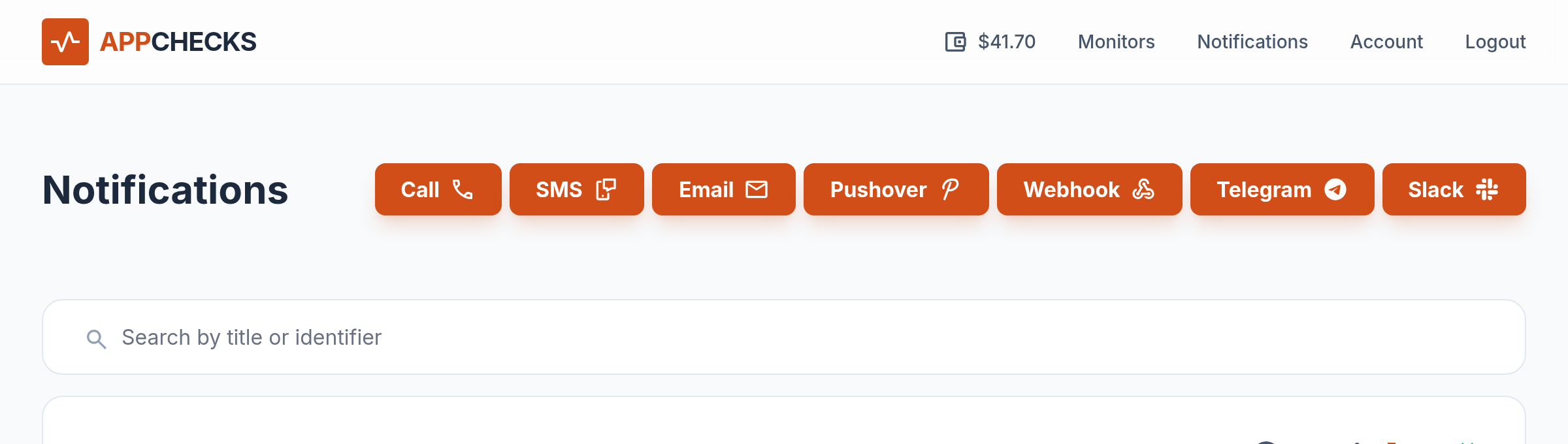
Slack is now on the list of alert channels, next to Email, SMS, phone calls, Pushover, Webhooks and Telegram. Paste an Incoming Webhook URL from your workspace and alerts go straight to the channel it points at, where the rest of the team will see them too.
Getting the webhook URL takes a couple of minutes in Slack's settings; our guide How to setup Slack Notification walks through each step.
Everything above is already live. Try the search the next time you're hunting for a monitor, or open the Account page to check when your next payment is due. And if something in the app still annoys you, tell us. That's how the next list of changes gets written.